

How to Email a Text Message
Sending a Text to a Mobile Number from Email
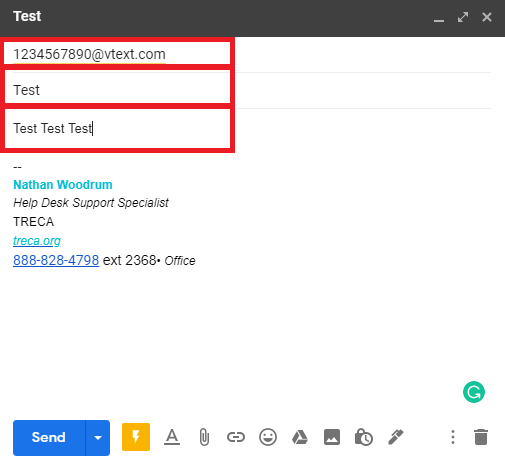
Click Compose as if you were sending a standard email. In the To field enter the 10-digit mobile number followed by @vtext.com (i.e., 1234567890@vtext.com). Give the email a Subject and type your message in the Body like an normal email. Click Send.
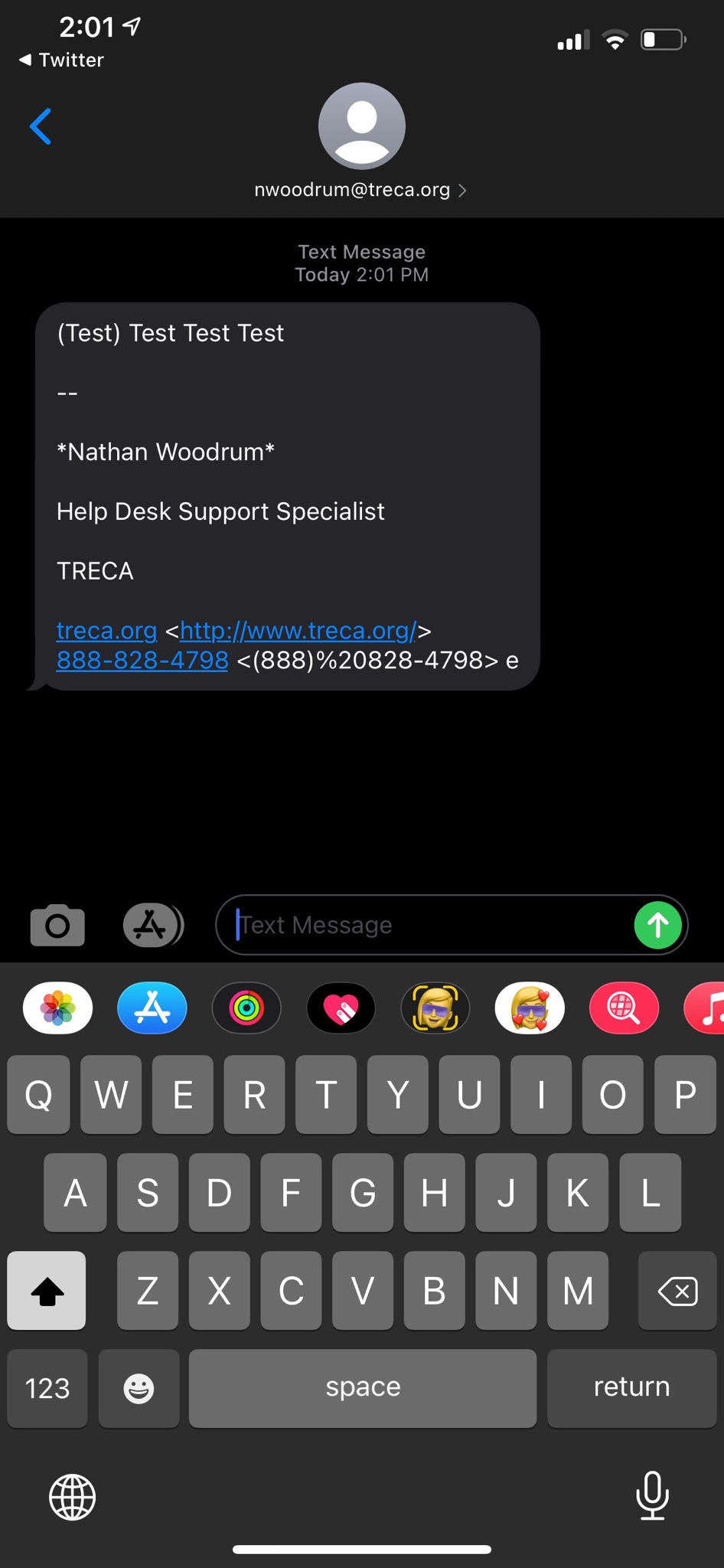
The student will receive the email just like a text message and will look like the image below.
Including an Attachment with your Text
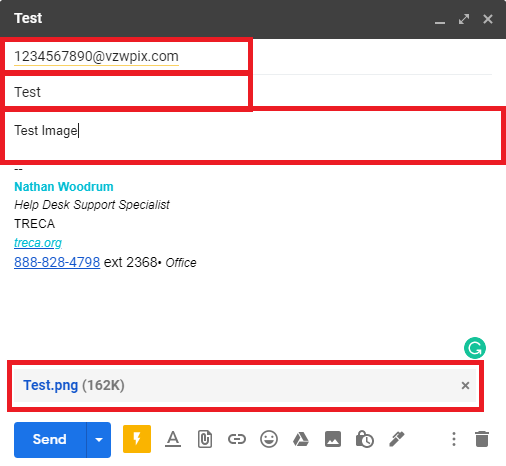
Click Compose as if you were sending a standard email. In the To field enter the 10-digit mobile number followed by @vzwpix.com (i.e., 1234567890@vzwpix.com). Give the email a Subject and type your message in the Body like an normal email. Click the paper clip icon to add an attachment. Click Send.
The student will receive the email just like a text message and will look like the image below.
