

Uploading a Picture from an iPhone to Dropbox
Getting Started
Some classes in Brightspace might ask that you upload a picture in to Dropbox. You might think to yourself how can this be done? The steps below will show you an easy way to accomplish this. All you need to have is your iPhone, iPhone charger, and computer.
Connecting the iPhone to the Computer
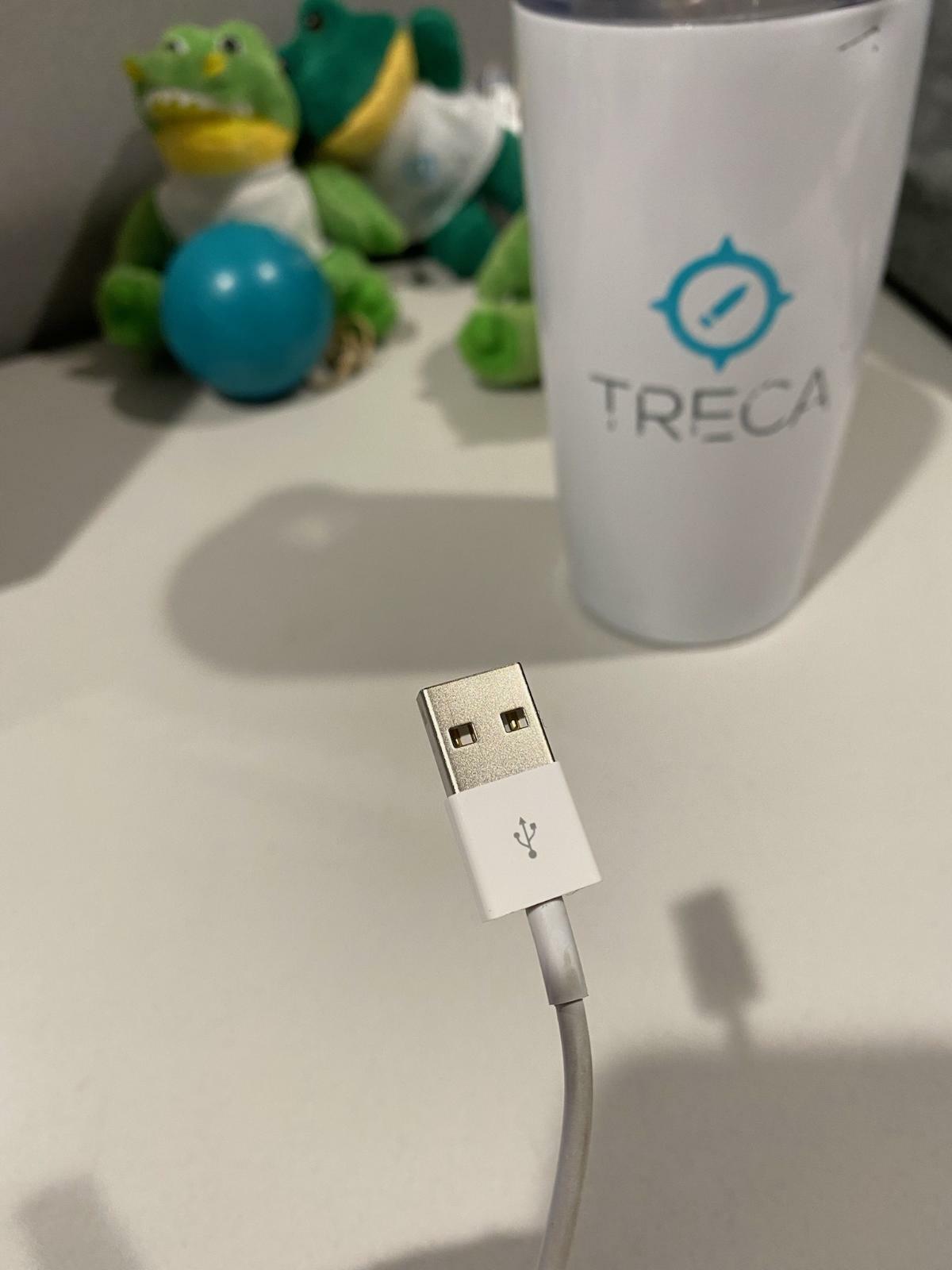
Start by plugging your iPhone into the computer. You can remove the USB end of the charger cord from the power brick and then plug the USB into the computer. Reference the picture below for what part of the cord will plug into the computer.
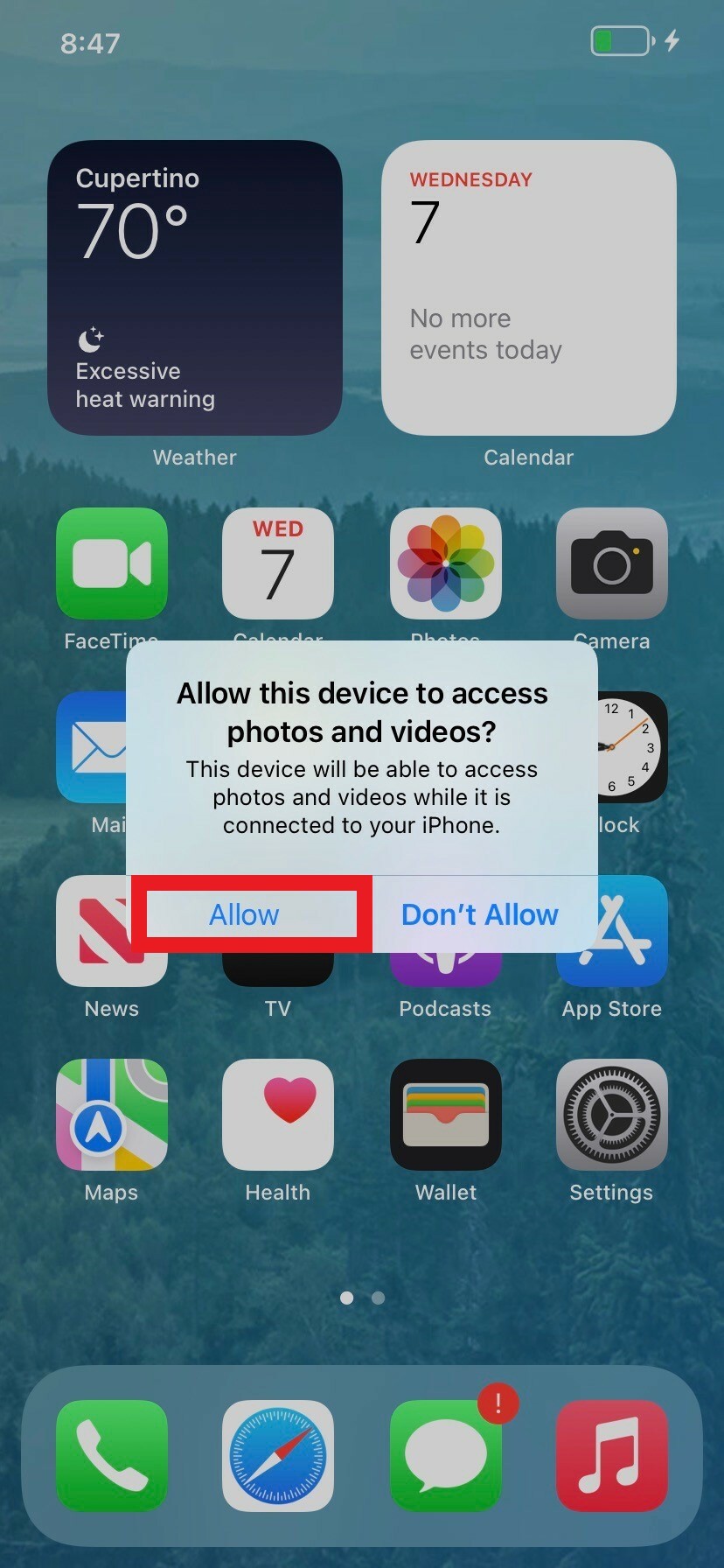
A pop-up on the phone will ask you to allow the device access to the computer. Click Allow.
Uploading the Picture to Dropbox
Navigate to the dropbox in the course your picture needs to be submitted. This can be found under Content in your course home.

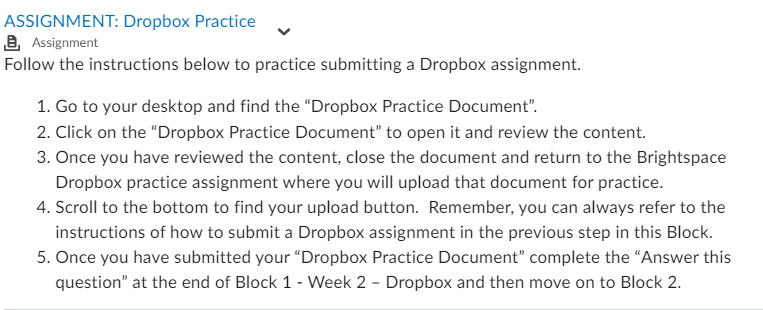
Locate and open the drop box assignment similar to the example below.
Click on Upload.
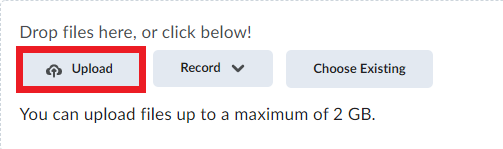
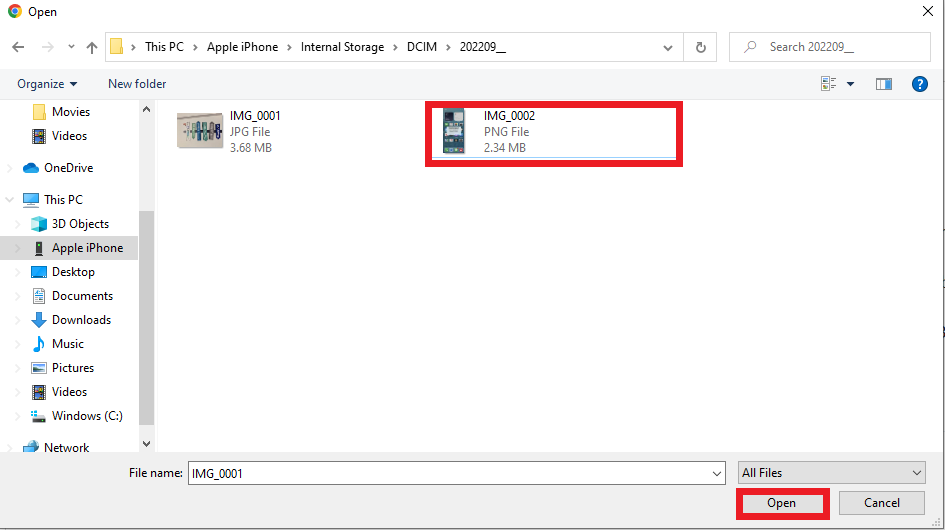
This will open the file explorer window for you to navigate what you want to upload. Click Apple iPhone. It might appear in multiple places, but they are the same.
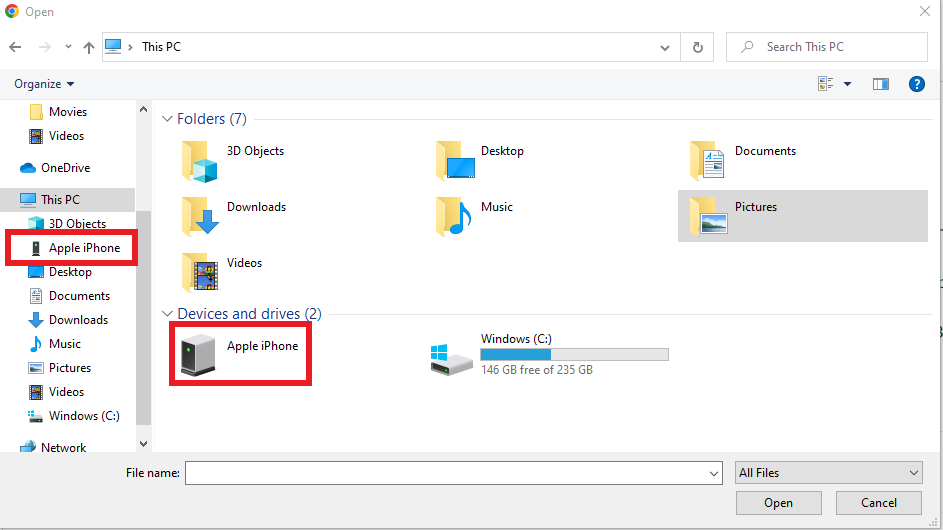
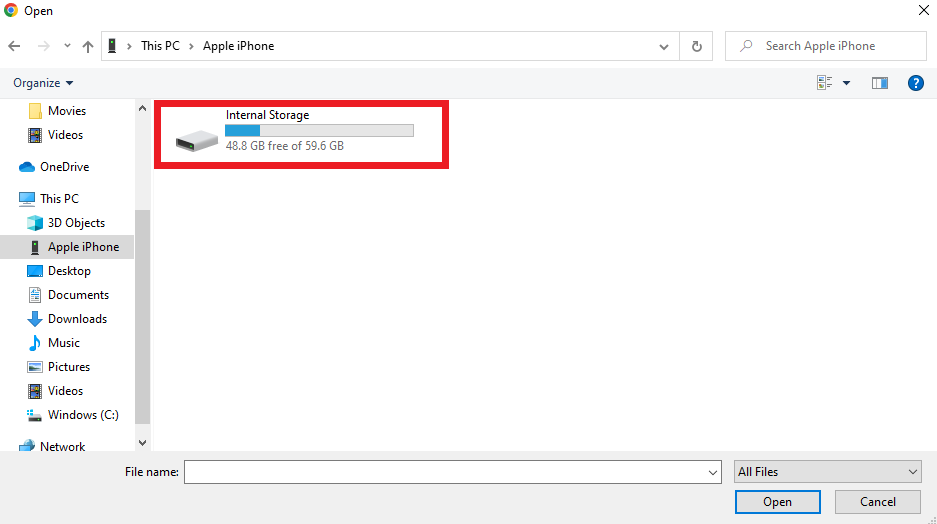
Double-click Internal Storage.
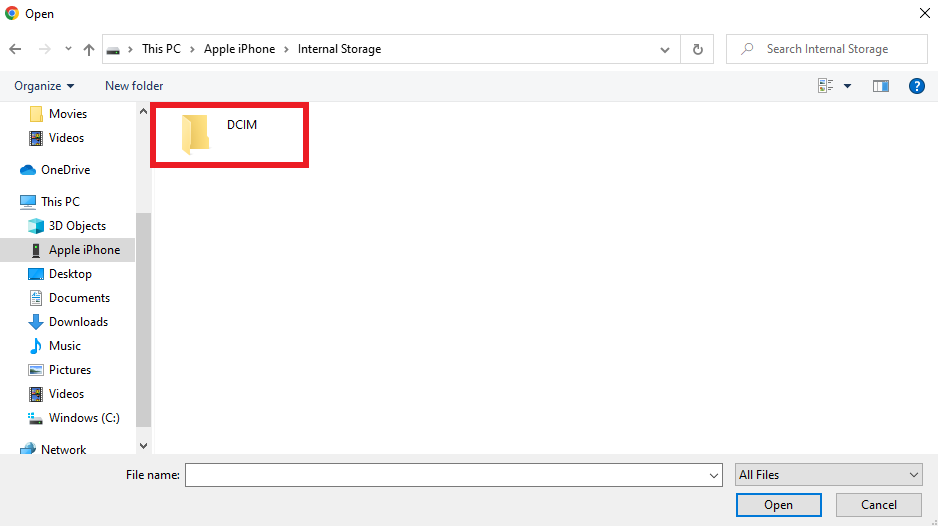
Double-click DCIM.
You might see multiple folders on the next window depending on how many photos are on the phone. The folders are dated by year and month. Depending on when the photo was taken the pictures will be in the corresponding folder.
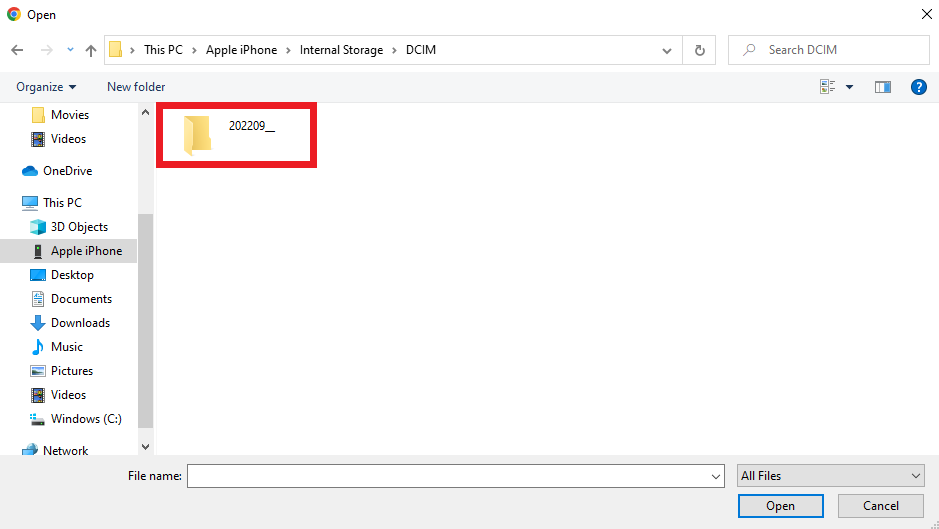
Select the photo you want to upload by clicking it once and then click Open.
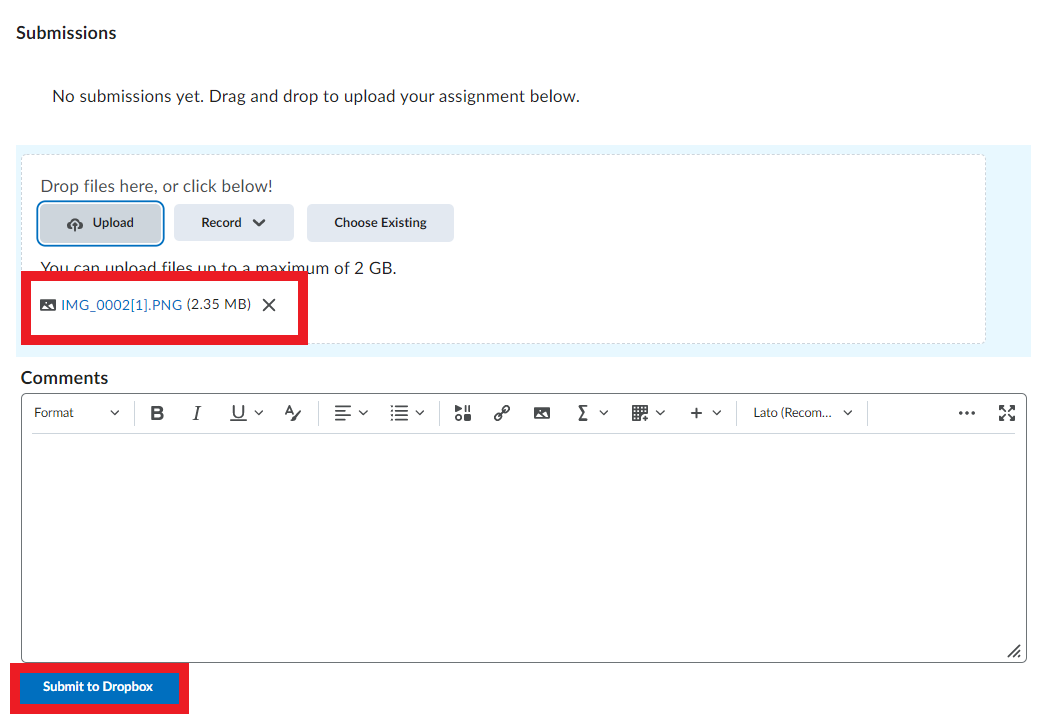
This will load the image into Brightspace, you will see the file and file size below the upload button. This shows you the file is uploaded and ready to submit. Click Submit to Dropbox.
Emailing a Picture
If the teacher approves you to email them the photo this can be done by following the steps HERE. Click Sending and Receiving Emails under the table of contents for the steps on how to attach a picture to an email.
IMPORTANT NOTE: If you have still having issues after following these steps please contact the Help Desk at 888-828-4798 ext 2791.