

Uploading a Picture to Dropbox on the iPhone
Getting Started
Some classes in Brightspace might ask that you upload a picture in to Dropbox. The steps below will show you an easy way to accomplish this using only your iPhone.
IMPORTANT NOTE: THIS SHOULD ONLY BE USED TO SUBMIT A PICTURE TO THE DROPBOX. DO NOT USE YOUR IPHONE TO COMPLETE SCHOOLWORK!
Uploading the Picture to Dropbox
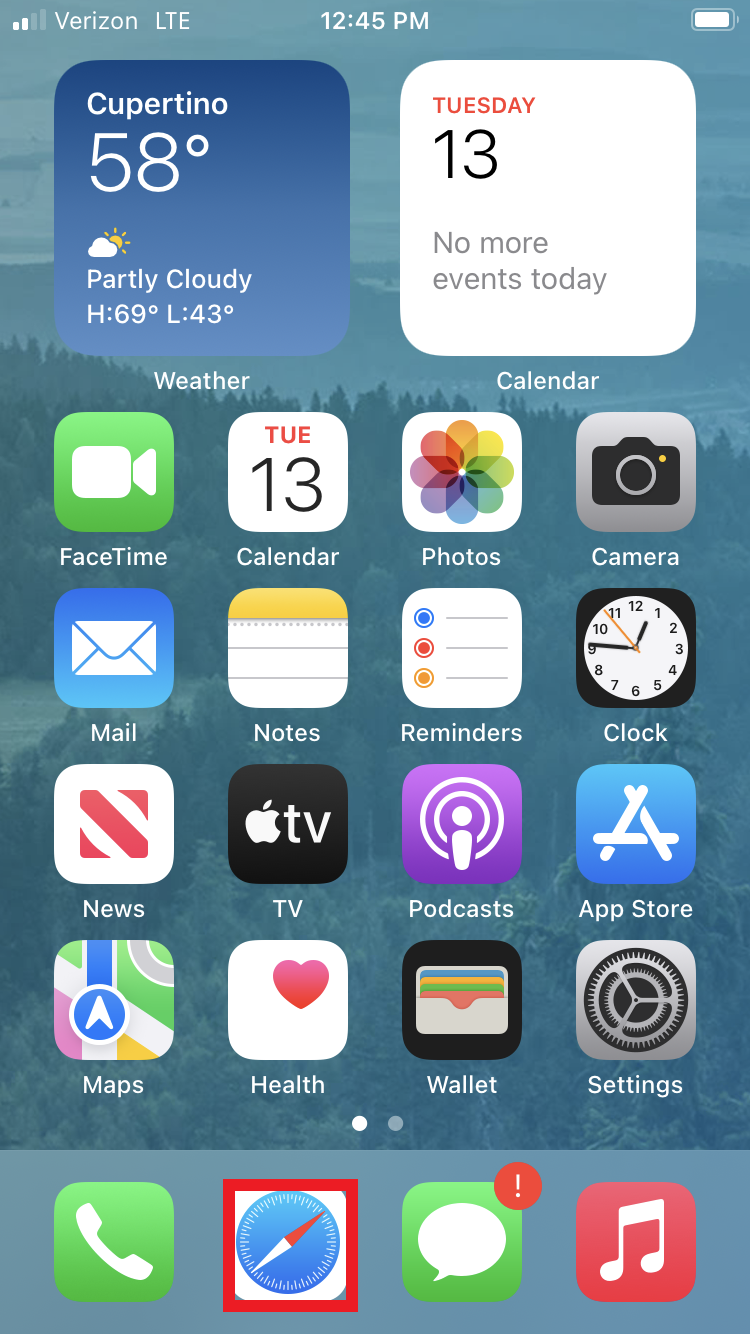
Click on Safari. This is the web browser on the iPhone.
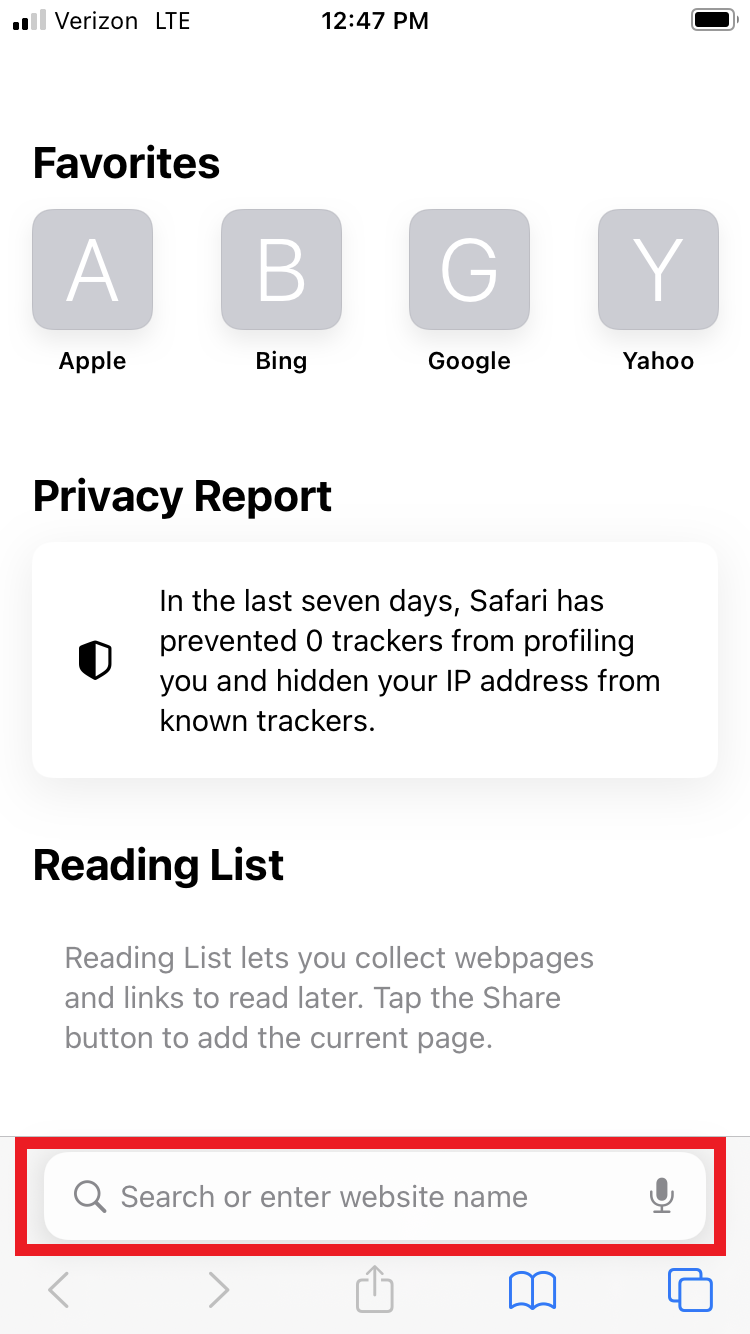
Type tda.brightspace.com in the address bar at the bottom of the page.
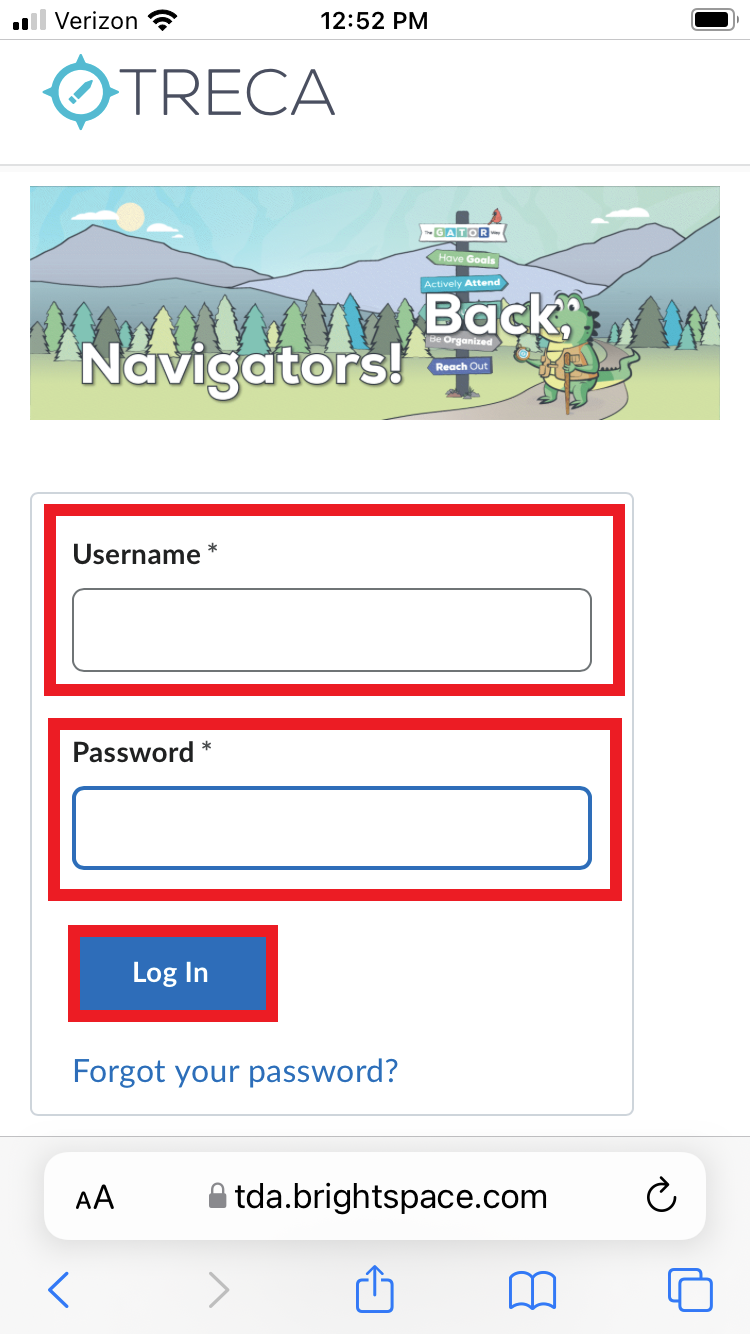
Type your Brightspace username and password just like you would on your computer. Click Login.
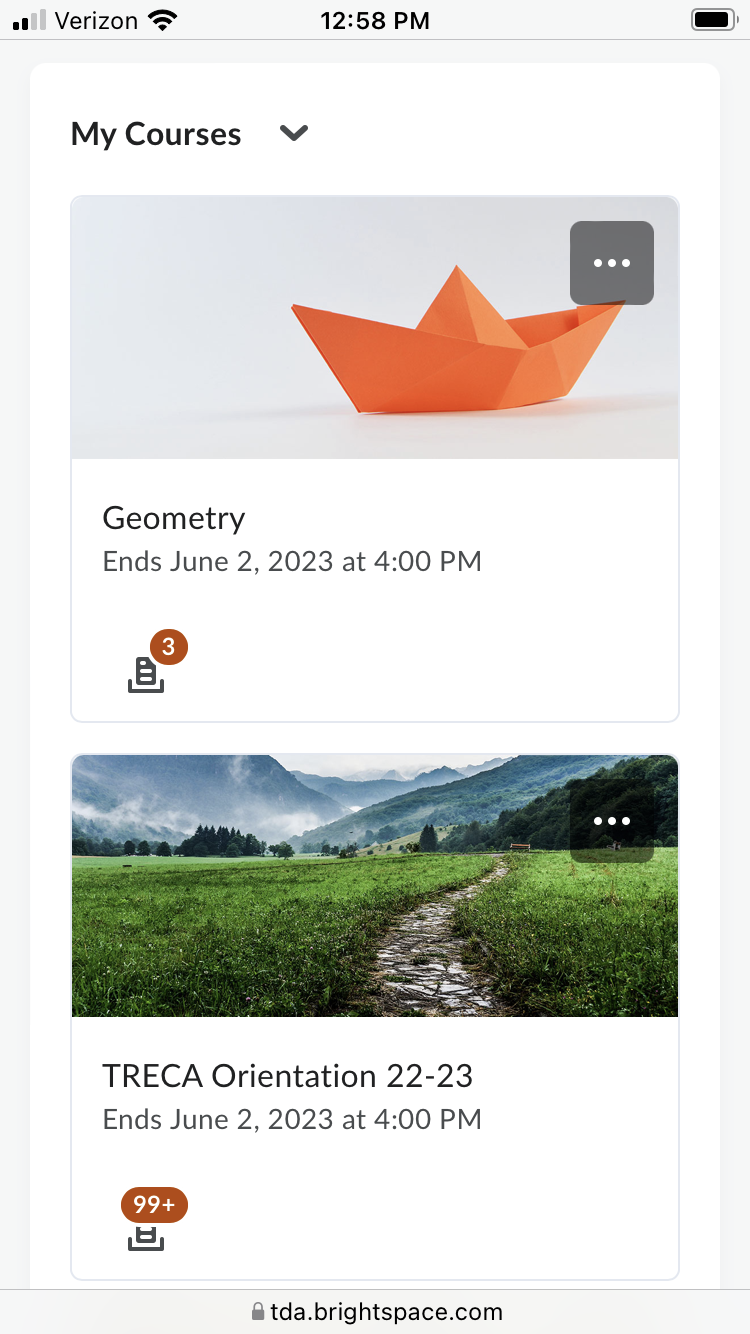
Scroll down until you find My Courses and find the course you are trying to submit the picture for. Use the image below to reference what you should see.
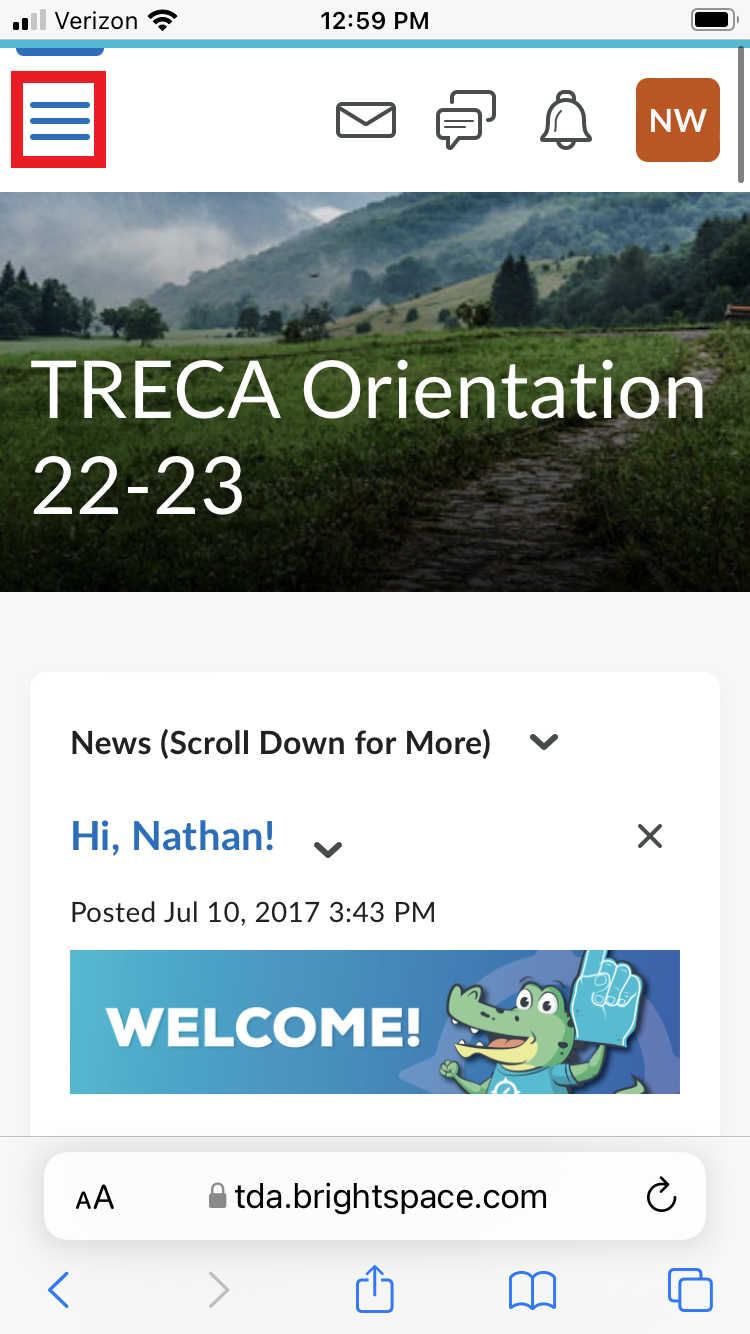
Once you are in the course you selected. Click the 3 lines in the upper left corner. Reference the image below.
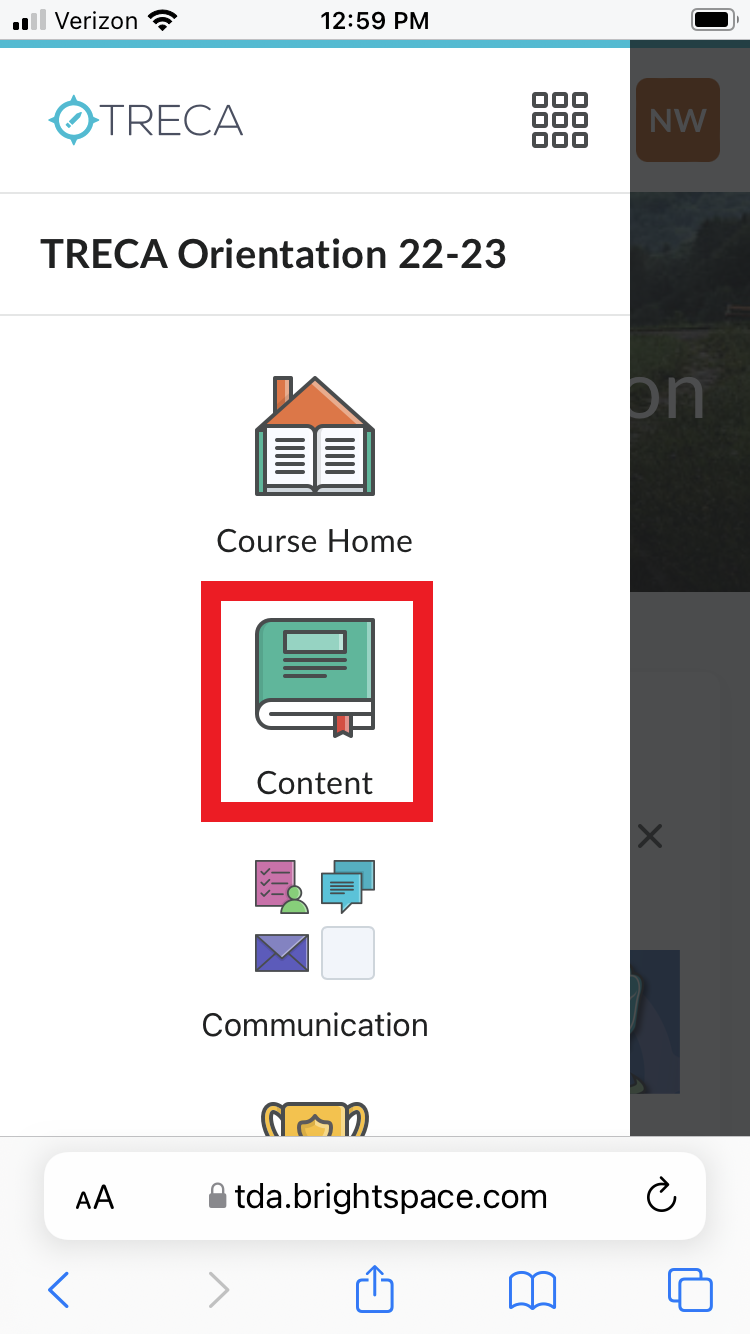
A menu will pop out. Click Content.
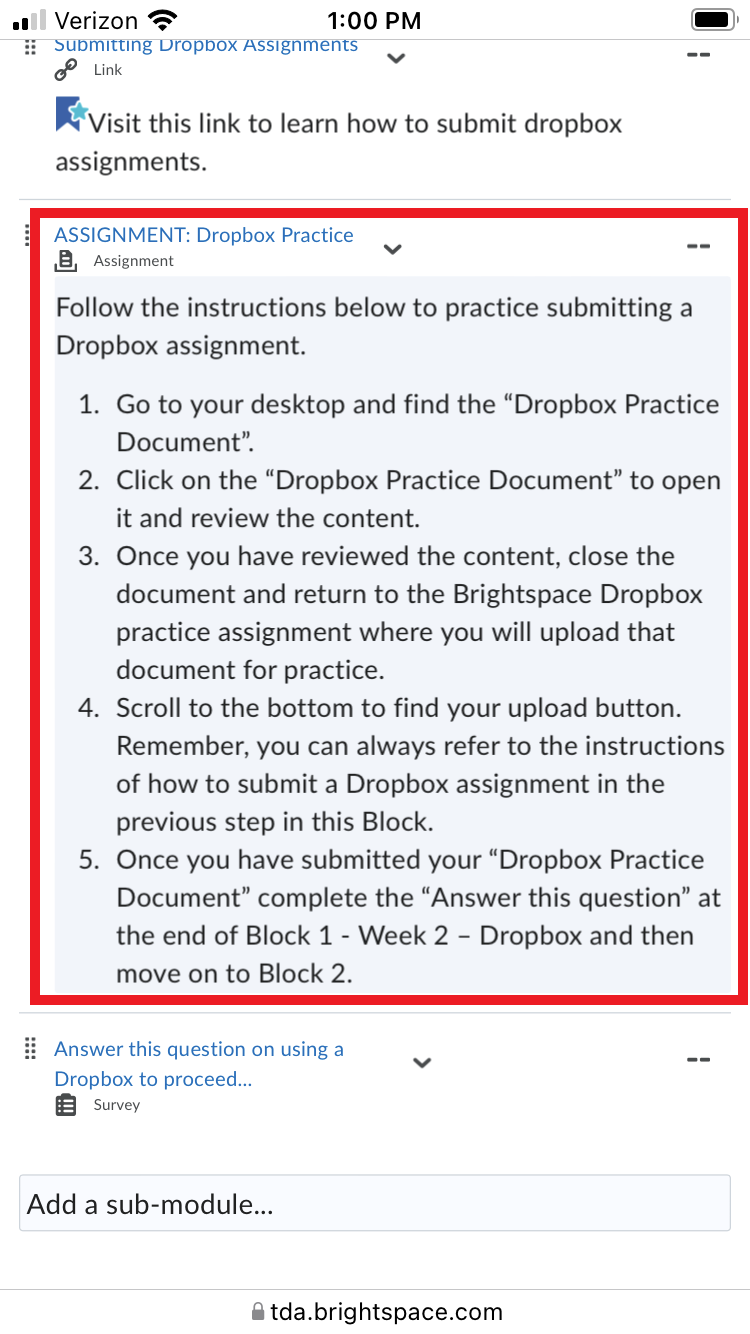
Scroll and find the dropbox assignment. Click on it to open it.
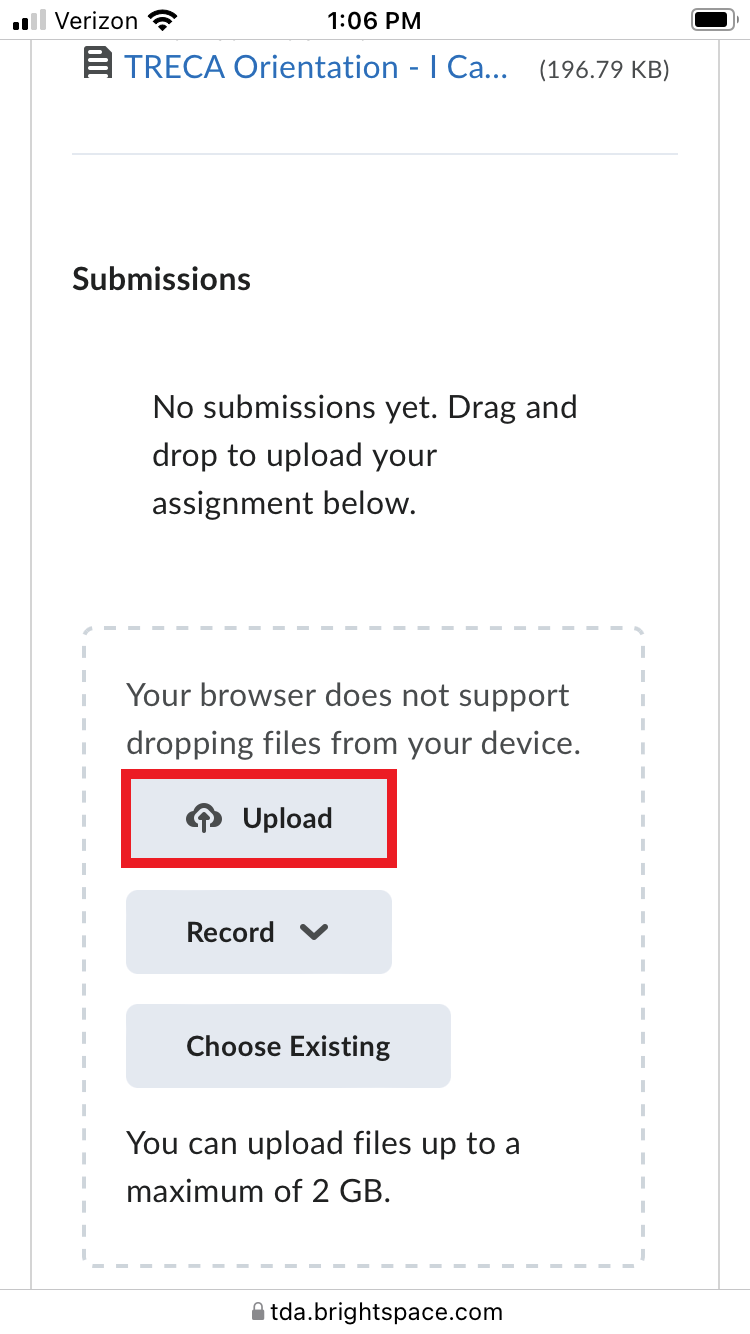
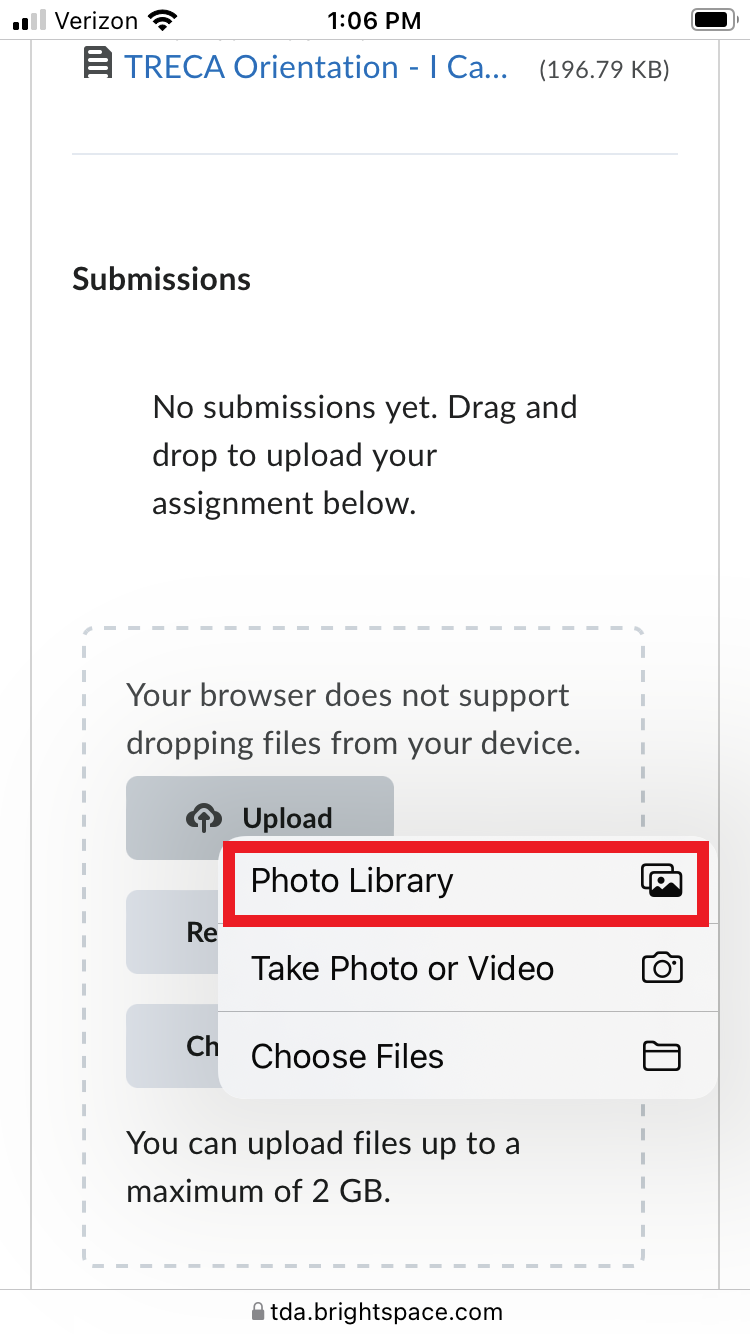
Scroll down until you see Upload, click it.
A small menu will pop up. Click Photo Library.
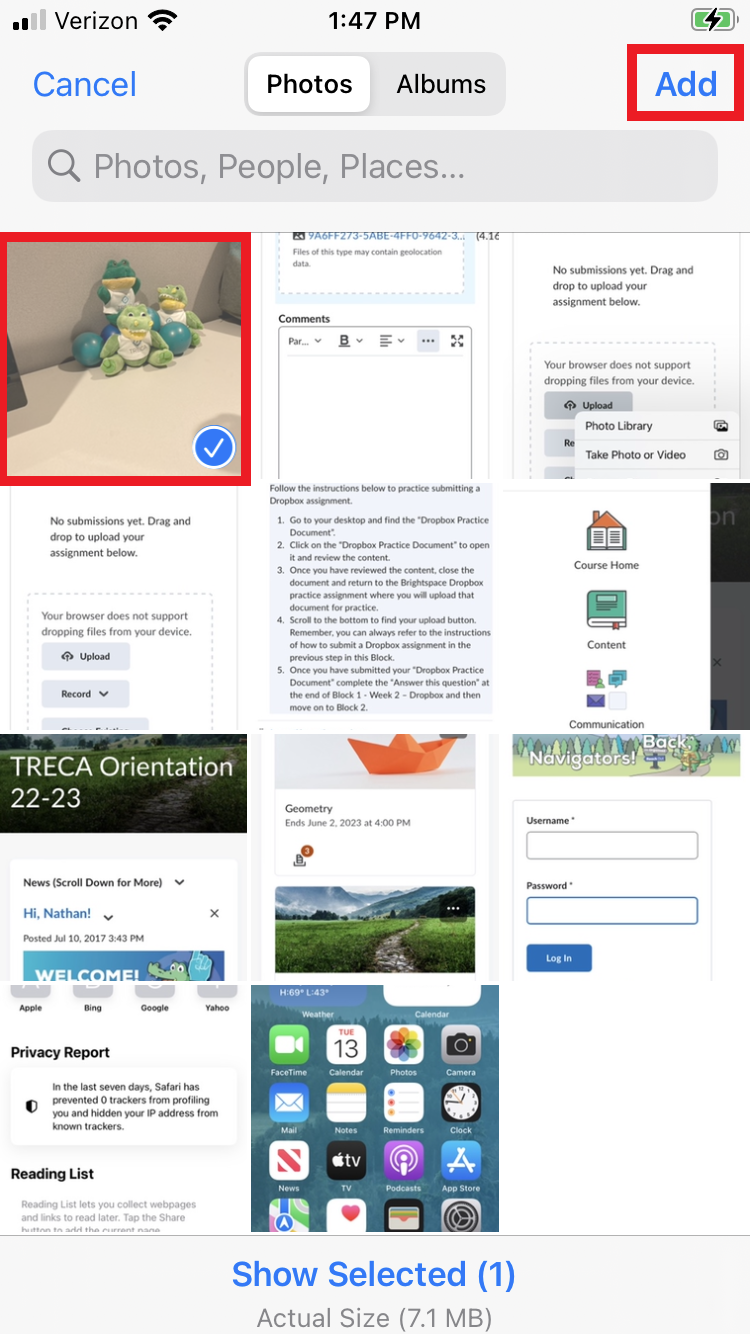
Find and select your image. Click Add in the upper right corner.
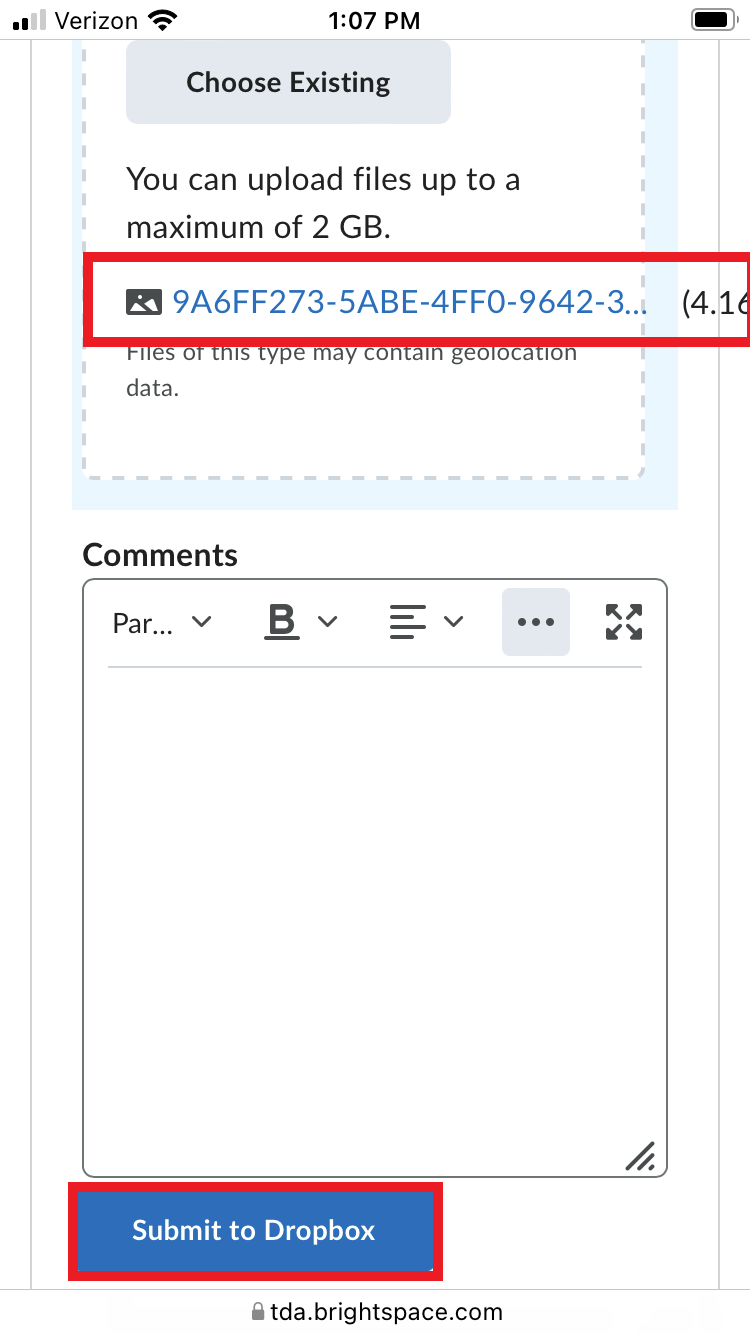
When the picture is uploaded to Brightspace you will see it like the image below. Click Submit to Dropbox.
IMPORTANT NOTES: If you are having issues submitting the picture this way try following the alternate method HERE. If you have still having issues after following all these steps please contact the Help Desk at 888-828-4798 ext 2791.